


Features
In the top of the Xobni pane you can view your contact profiles. It also displays each contact's phone number, which it extracts from e-mail messages.You see the thread of conversations you've had and files you've exchanged just below the profile,. It is easy to find and view threads by specific topics; a slider control reveals more or fewer lines of the conversation.Xobni searches the web for information about your contacts. Facebook, LinkedIn, Skype,Hoovers information & more, brought into Outlook.


Other useful add-ons
Gwabbit automatically scans incoming Outlook emails, finds contacts, and instantly transforms them into contact records within your address book with a mouse click.
Xiant Filer is an add-in for Microsoft Office Outlook that helps you more efficiently manage your e-mail. Filer simplifies the task of keeping your inbox organized by allowing you to file messages with a single click. Filer also keeps you focused on important topics in your e-mail without being distracted by the contents of your larger mailbox
Duplicate Killer for Microsoft Outlook is a powerful plug-in for searching, managing and eliminating any type of duplicates (e-mails, contacts, tasks, calendar items (events, appointments, meetings), notes, journals) across all or chosen Outlook folders (including public folders).
Neo Pro is an Outlook add-on that shows you many, many views of
all your messages - by date, by sender, by attachment – in all the ways you think about email, and it's instantly searchable.Taglocity allows you to add in the much needed feature of tagging emails, tasks, contacts and calendar entries.
Google Calendar Sync is to to synchronize your calendar between multiple Outlook installations.You can then use your Google account as a central storage for calendar events and keep both your Outlook installations in sync.
- Outlook Connector provides a free solution for managing your Windows Live Hotmail e-mail and contacts from within Outlook. With the new release of the Outlook Connector, you can connect your Windows Live Hotmail account in Microsoft Office Outlook 2007 or Outlook 2003 free of charge
- OutSync is a Microsoft Outlook add-in that will automatically sync photos of your friends from your Facebook account with those present in your Outlook contact list.
- Easy2Add software and Gadget for Microsoft® Windows Vista® are free* and fastest way to create Microsoft Outlook events (appointments, meetings, all day events)tasks (to-do), new! contacts and notes from plain English


More Add-ons here
The longer you use Microsoft Outlook, the duplicate records are to creep into your calendar and contact list.Outlook Duplicate Items Remover (ODIR)—eliminates duplicate contacts,calendar entries, tasks, notes, and e-mail folders
Using ODIR is very easy: select a folder and click the button Remove Duplicate Items .After installing the free program, fire up Outlook and find the newly added ODIR menu. Click it, and then choose Remove Duplicate Items. Select the folder that you want ODIR to scan; it will detect duplicates and relocate them to a subfolder (without actually deleting anything, so you’re safe against accidental matches).

ODIR recognizes an item as a duplicate if all of the following properties match those of another item in the same folder:
- received emails : the internet message ID (this is a unique identifier for each email received)
- sent emails : email subject and the time the email is sent
- unsent emails: email subject only
SysReq:Windows 2000, Windows XP, Windows Vista | 2.11MB | Freeware| Download
Most people have their official mails configured on Outlook. While some of these mails are circulars or internal information, some of them need a response in return. If you are in the middle of something important, you may have to put off the replying for another time. How do you ensure that you reply to your mails without forgetting?
This article looks at the importance of follow-up and how to use Outlook Flags to assist with follow-up and keeping track of contacts. Many people think that they are capable of handling all their follow-ups without an organized system, but usually they are just not aware of how much business they’re losing because they actually cannot cope with the amount of follow-up required.
Flags are used as follow-ups and reminders on e-mail messages and contacts. You use Outlook flags to remind yourself to follow up on an issue or to indicate a request for someone else. A reminder date and time can also be added and displays in the reminder window.
There are 6 different coloured flags available for e-mails. You use the colored message flags to manage your incoming e-mail items by flagging the items for different kinds of follow-up. For example, use the red flag to mark messages that require immediate attention, and the blue flag for messages to read later. When you add a message flag, the background color of the Flag Status column changes color to make it easy for you to quickly find items in the message list while scrolling.
To Flag an Outlook Message
Start Outlook Application.
Click the folder in which the mail appears.
Right-click on the mail to be replied to.
In the context menu, select the “Follow Up” option.
Right-click in the flag column of the message and choose the desired flag.
OR
Right-click on another column such as the message subject, choose Follow Up and then the flag color

- In the Flag to list, you can add a reminder if you want, or type your own.Right click on the Flag
- Enter a date and time in the Due by boxes.
- On clicking OK, note that the e-mail message is now marked to be followed up (in this case Read by Thursday, 30 April at 4.00 PM):

Creating Views to Organize your Follow-Ups
Once you marked various items to be follow-up, you need to create a series of views to focus on items to be followed up.For this you have to create a filter
To open the Filter dialog box, point to Current View on the View menu, click Customize Current View, and then click Filter.

In “More Choices” you can create filter and press “OK”

Marking an Item Complete
Once you have done the follow-up, you can mark the item complete. Do the following:
If it’s an e-mail message, clicking on the Flag Status column will mark the e-mail complete.Alternatively you may right-click on the e-mail and select the options from the Follow Up menu.


Also check:-

1. Open Microsoft Outlook and click on an email folder you want to back up, such as Sent Items, Deleted Items, Inbox, Drafts, and so on. This will create smaller and segregated files instead of backing up all your folders into one file (which might not fit on one recordable DVD).
2. Once your selected folder is highlighted by clicking on it, such as Inbox, click the word File at the top of the screen and select "Import and Export" from your list of options. Select "Export to a File."

3. There are a few different ways you can save your old email folder but it is recommend Personal Folder File (*.pst) as it does a good job with keeping attachments. Select a name for the file (such as Inbox.pst) and where on your computer you want it saved, such as your desktop.

4. That's it! Repeat the same process as above for other email folders, and if you like for your Notes, Tasks, Contacts and Calendar appointments. Now you're ready to burn a disc with these files and keep them in a safe place in case you ever need to retrieve them
If you have Microsoft Outlook 2007 on Exchange Server , then Email Prioritizer might be a tool that has just been created for you.
It uses an impressive algorithm to analyze each message based on the relationship of sender to recipient, time sent -- even key phrases in the message. Email Prioritizer has two really useful features:
1. When you change the priority of a message, the system "learns" from this, and tries harder next time; and
2. It has a "Do Not Disturb" feature, which makes e-mail go away for the amount of time you specify before re-appearing in your inbox.

FAQ here


Problem: Outlook blocks certain attachments—they just cannot be opened!
Solution:
Open the Registry Editor. Navigate to HKEY_CURRENT_USER\Software\Microsoft \Office\x\Outlook\Security Here, x should be “9.0” for Outlook 2000, “10.0” for Outlook 2002, and “11.0” for Outlook 2003. Next, go to Edit > New, and click ‘String Value’. Type in “Level1Remove” (without the quotes) for the new value.Press [Enter]. Right-click the new string value name, and click ‘Modify’. Type in the extension of the file type you would like to open in Outlook, for instance, “.exe” (without the quotes).
To specify multiple file types, use the format “.exe;.com” (without the quotes; note the semicolon). Click ‘OK’, quit the ‘Registry Editor’, and then restart your PC. From now on, Outlook will no longer block the attachments you specified. 
Problem: Clicking hyperlinks in Outlook Express does nothing at all.
Solution:
This could happen if one or more registered file associations are configured incorrectly. To repair this, go to the Control Panel > Folder Options. Click the ‘File Types’ tab. Select ‘URL:HyperText Transfer Protocol’ in the list of file types.Click the ‘Advanced’ button (in Windows XP), or the ‘Edit’ button (in other Windows versions).
In the list of ‘Actions’, select ‘Open’, and click ‘Edit’. The ‘Application used to perform action’ box should contain, including the quotation marks: “C:\Program Files\Internet Explorer\iexplore.exe” -nohome (This is assuming IE is your default browser.) If it contains a short name version of that path, or an incorrect path, change it to the above, again assuming that you want IE to open your hyperlinks. Now click ‘OK’ twice. Repeat these steps for the file type ‘URL:HyperText Transfer Protocol with Privacy’. Finally, click ‘OK’.
Problem: Outlook doesn’t open at all, or takes a very long time to open.
Solution:
This is a common error with Outlook 2000 and 2002. Sometimes, it may take more than 30 seconds to open. This is often due to a corrupt ‘Outcmd.dat’ file—it stores custom changes you may have made to your toolbar buttons. You can rename or delete the file; but if the problem gets resolved when you do this, you will, of course, need to make your custom toolbar button changes again.
To remove the ‘Outcmd.dat’ file, simply search for the file and delete it. When Outlook next opens, it recreates the file (a non-corrupted one). Delete any instances of Outcmd.dat you find on your PC, and that usually, the file is in the ‘Application Data\Microsoft\Outlook’ folder.
Problem: Outlook sends out attachments called ‘winmail.dat’ that cannot be read by other mail clients.
Solution:
You’ll need to turn off ‘Rich Text’ sending for messages in Outlook. Go to Tools > Options and click the ‘Mail Format’ tab. In the ‘Send in this Message Format’ list, select ‘Plain Text’ and click ‘OK’. This will set your default sending method to plaintext, which means you’ll lose your special formatting—fonts, colours, and so on. But the ‘winmail.dat’ problem will be solved and all receivers irrespective of the mail client they’re using, will be able to read your mail. There still remains a question: what if you want to view the winmail.dat—the mail the sender intended you to read, with all its formatting? A couple of programs can decode the file and allow you to view it. One of them is WMDecode for Windows, available at www.biblet.freeserve.co.uk.
Problem: You receive mail in your mail client, but you cannot send mail.
Solution:
This is a very common problem, compounded by the fact that many ISPs frequently change their outgoing mail settings. There are three things you can do. First, check that your settings are correct—the outgoing mail server address, and see whether authentication is needed for the outgoing mail. You might think you have the settings right, but since ISPs can change the settings, you might have to call customer service and verify again. Second, experiment a little. The customer service person may not know the settings, for instance, he or she may not know that outgoing mail server authentication is needed. Ensure that the e-mail address you typed is the one your ISP assigned to you, and see if it works. And third, if you’re positive that your settings are right, then try to receive your mail first, and send immediately after that. This often works!
Xobni is the Outlook plug-in that saves you time finding email conversations, contacts and attachments. After a quick install, you'll see the new Xobni toolbar appear in Outlook - and suddenly information will become much easier to find. When a new email arrives, the sender's full communication history appears in the Xobni sidebar, including past conversations, attachments and contact details. Xobni also includes a blazing fast email search tool.
System Req:Windows XP/Vista, Outlook 2003 or 2007, 2 GHz processor, 1+ GB RAM | Freeware


You may familiar with the "Ribbon" feature in Outlook 2007.Resize image option for attachments is available in the Ribbon.
On the Ribbon select the Insert tab and click Attach File.
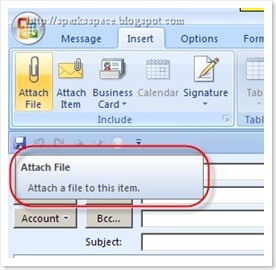
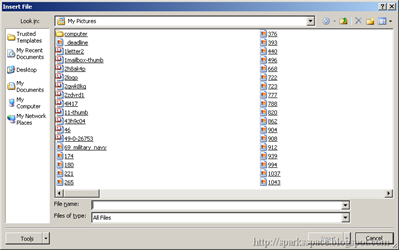
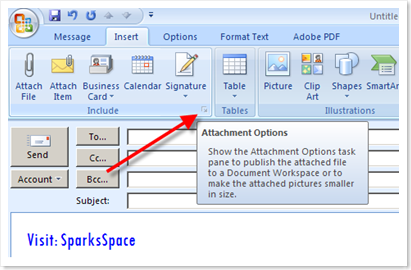
Once you click on the icon, you can attachment options. At the bottom you can see Picture Options where you can set resize options.
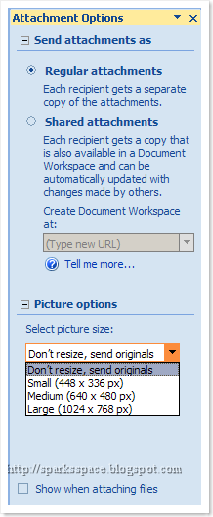
Q :Resize of attachment task pane does not open Outlook 2007.
A:You need to use "Attach File" first. Then the dialog launcher (little arrow)in the Include group will be enabled so you can display the Attachment Options task pane. BUT, if all you want to do is attach photos to an email and you aren't using shared attachments or want the images to be resized then you don't need to use the Attachment Options task pane.


